
In This Article
This article organizes the types and formats of data received through MQTT-Studio in detail, so it can be useful for checking device status or integrating with a positioning system.
How Do I Check MQTT Data?
You can check the data sent from the gateway through the topics you’ve subscribed to in MQTT-Studio.
- Topic examples:
uwb/gateway/start/#uwb/gateway/config/#uwb/gateway/devices/#
Clicking a message in MQTT-Studio shows the detailed JSON data,
and clicking the copy button on the right copies it as text so you can easily analyze it in Notepad or similar tools.
Examples and Descriptions by Data Type
The main data sent from the GrowSpace gateway is divided into the following 4 types.
Start Data
- When sent: Sent only once, right after the gateway boots
- Purpose: Confirming device boot and network connection status
Once the gateway is powered on and boots successfully, it sends a start message announcing the initial system state.
This message lets you check the gateway device’s ID, Pan ID, and current IP address.
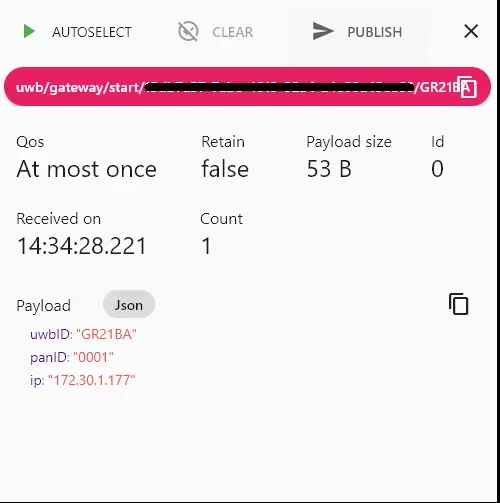
{
  "uwbID": "GR21BA",
  "panID": "0001",
  "ip": "172.30.1.177"
}
Use cases:
- Checking that the gateway is properly connected to the network
- Device identification and confirming install location
Config Data
- When sent: Sent repeatedly at a fixed interval
- Purpose: Device heartbeat
This is status data sent periodically to indicate that the gateway is continuously operating.
The format is the same as the start data, but it is distinguished as being for ongoing heartbeat purposes.
The Config data send interval defaults to once every 10 seconds.
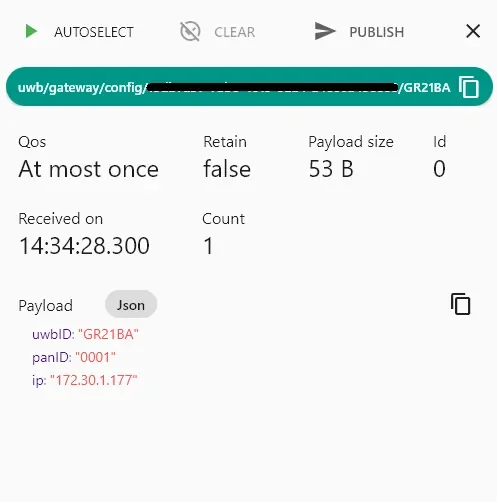
{
  "uwbID": "GR21BA",
  "panID": "0001",
  "ip": "172.30.1.177"
}
Use cases:
- Checking that the system is online
- Detecting device failure or network disconnection
Anchor Information (devices – anchors)
- When sent: When the gateway detects an anchor
- Purpose: Delivering the reference point (anchor)’s position and role
This message includes the ID, coordinates, Pan ID, and initiator status of the UWB anchor detected by the gateway.
This information is used to build the anchor data that serves as the reference for position calculation.
The send interval for anchor data cannot be changed; it is sent automatically based on detection events or internal system logic.
{
  "gatewayID": "GR21BA",
  "anchors": [
    {
      "id": "GR365d",
      "panID": "0001",
      "initiator": true,
      "x": -2.92,
      "y": 0.35,
      "z": 0.00
    }
  ]
}
Use cases:
- Automating anchor position registration
- Mapping reference points when building a system map
Tag Location Data (devices – tags)
- When sent: Sent repeatedly each time a location calculation completes
- Purpose: Real-time location tracking
The gateway calculates the current location coordinates (x, y, z) for UWB tags and sends them in a single message.
A single message can include multiple tags, and it consists of gatewayID, panID, tag ID, and coordinate values.
The send interval for tag data can be changed directly by the user via the aurs command setting on the tag device.
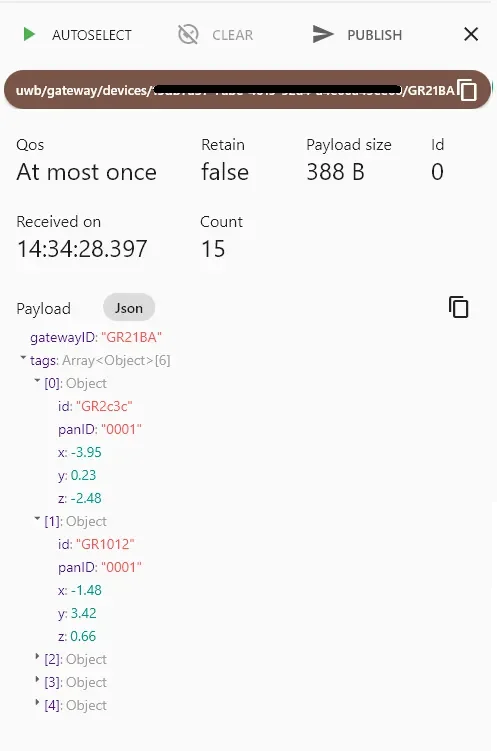
{
  "gatewayID": "GR21BA",
  "tags": [
    {"id":"GR2c3c", "panID":"0001", "x": -3.95, "y": 0.23, "z": -2.48},
    {"id":"GR1012", "panID":"0001", "x": -1.48, "y": 3.42, "z":  0.66},
    {"id":"GR2eba", "panID":"0001", "x": -4.27, "y": 0.20, "z": -2.36}
  ]
}
Use cases:
- Integrating with a real-time location visualization dashboard
- Analyzing tag movement paths
- Building geofences for entry detection or hazard zone intrusion alerts
Summary and Usage Tips
| Data Type | MQTT Topic | Purpose |
|---|---|---|
| Start | uwb/gateway/start/# | Check gateway boot status |
| Config | uwb/gateway/config/# | Check whether the device is operating (heartbeat) |
| Anchors | uwb/gateway/devices/# | Provide anchor information |
| Tags | uwb/gateway/devices/# | Send tag location data |
- The
projectIdin the topic is based on the API key, and it differs for each system. - For real-time debugging or system verification, check that data is received correctly in the flow Start → Config → Devices.