
In This Article
This guide shows how to connect the GrowSpace UWB developer tag to a Raspberry Pi 4 Model B, and how to receive and parse real-time position data using the lec and lep commands. It focuses on hands-on examples that implement serial communication in Python and analyze position data directly.
What You’ll Need
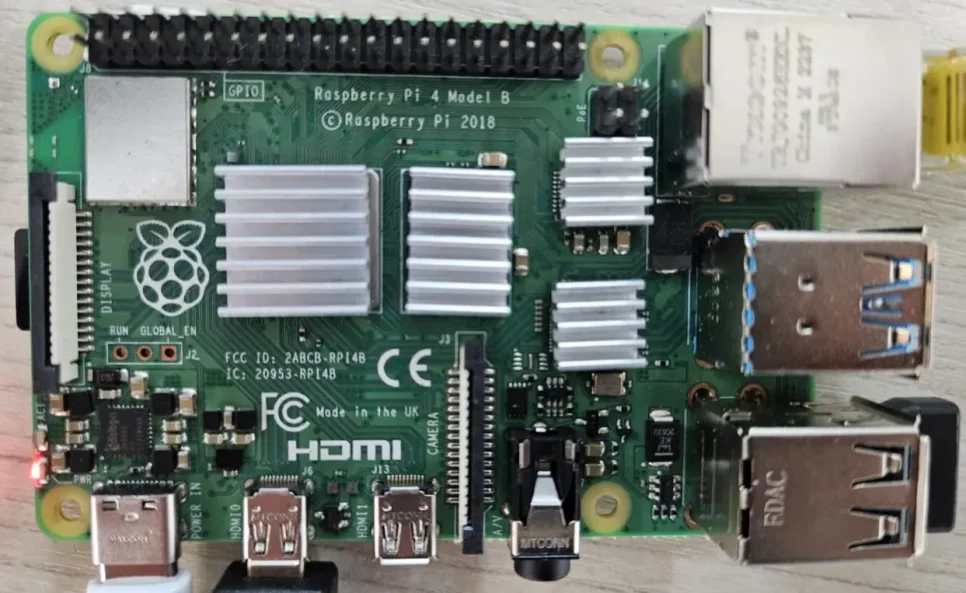
- Raspberry Pi 4 Model B
- USB-C power adapter (5V 3A or higher)
- GrowSpace UWB developer tag
- Jumper cables (TX, RX, GND, 3.3V)
- Python 3.9.2 or later (based on Debian GNU/Linux 11)
- pyserial package installed
Raspberry Pi Serial Port Setup
- Enter the following command in a terminal:
sudo raspi-config
2. Navigate the menu:
* Interface Options → Serial Port
* Login shell via serial: No
* Enable serial port hardware: Yes
3. After configuring, reboot with sudo reboot
Serial Pin Connection (UART)
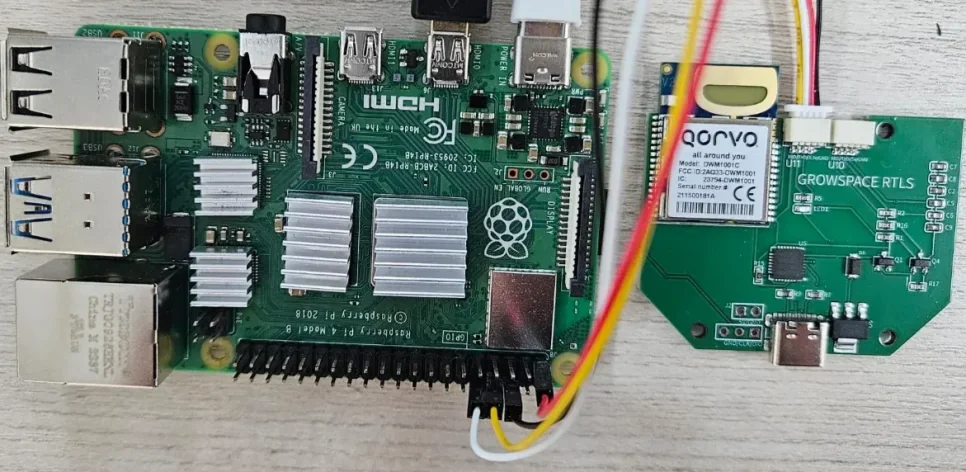
Connect as follows, using the 3.3V connector (left side) of the GrowSpace developer tag:
| Developer Tag Pin | Raspberry Pi Pin Number | GPIO Number |
|---|---|---|
| TX | Pin 10 (RXD) | GPIO15 |
| RX | Pin 8 (TXD) | GPIO14 |
| 3.3V | Pin 1 | – |
| GND | Pin 6 | – |
⚠️ Be sure to cross-connect TX ↔ RX. Tag’s TX → Pi’s RX, Tag’s RX → Pi’s TX
Reference: Raspberry Pi GPIO Pinout
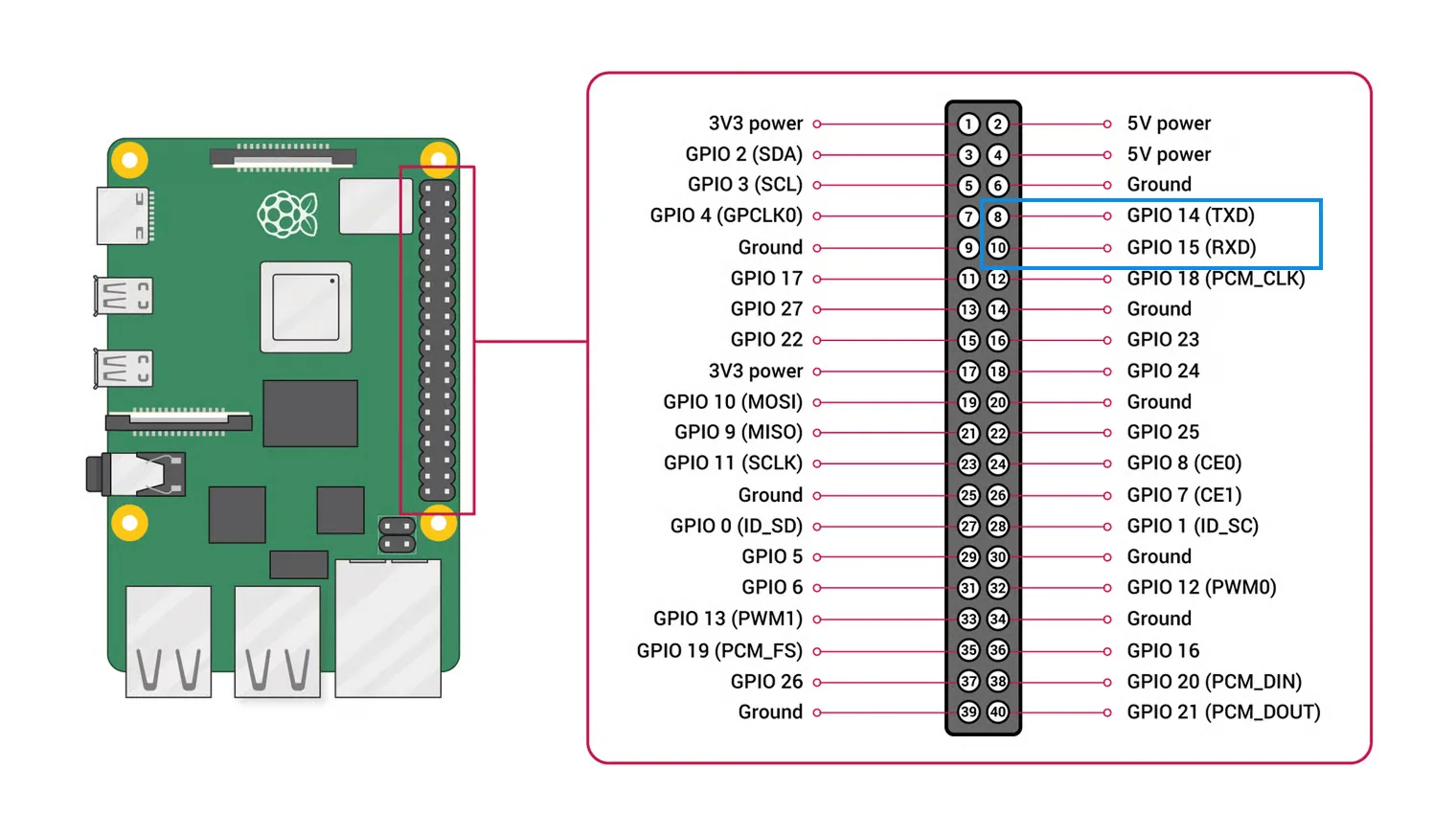
Below is the full pinout of the Raspberry Pi’s 40-pin header. Connect precisely according to the following pin numbers:
- TX0: GPIO14 (Pin 8)
- RX0: GPIO15 (Pin 10)
- 3.3V: Pin 1
- GND: Pin 6
Referring to this diagram will help you understand the serial connection to the developer tag more clearly.
To see the full GPIO layout and schematic information in the official documentation, check the following link: View the official Raspberry Pi pinout and diagrams
Caution: Distinguishing GrowSpace Tag Serial Ports
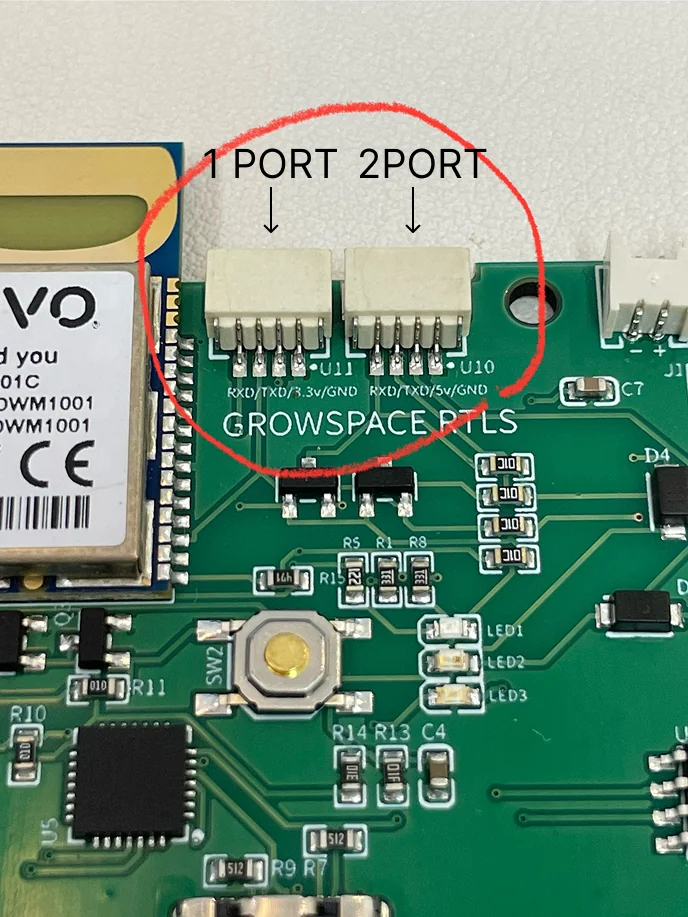
The GrowSpace developer tag has serial ports with different voltage levels on its left and right sides. This isn’t just a difference in pin location — the two are electrically completely different levels, so you must be careful to use the correct one.
- Port 1 (left connector)
- Configuration: TX, RX, 3.3V, GND
- Operating voltage: 3.3V level
- Use: For connecting to 3.3V-based devices such as Raspberry Pi, ESP32, etc.
- Port 2 (right connector)
- Configuration: TX, RX, 5V, GND
- Operating voltage: 5V level
- Use: For connecting to 5V-based devices such as Arduino UNO, etc.
Be Sure to Check
- The Raspberry Pi’s GPIO pins only tolerate 3.3V.
- Connecting the 5V port (right connector) incorrectly can damage the Raspberry Pi’s UART circuit.
- This manual requires you to use the left connector (3.3V port).
Python-Based Serial Communication Code
import serial
import threading

uwb = serial.Serial('/dev/serial0', baudrate=115200, timeout=0.5)

def read_from_uwb():
    while True:
        if uwb.in_waiting:
            data = uwb.readline().decode(errors='ignore').strip()
            if data:
                print(f"[UWB response] {data}")

def write_to_uwb():
    while True:
        try:
            cmd = input(">>> ")
            if cmd.strip():
                uwb.write((cmd + '\r').encode())
        except KeyboardInterrupt:
            print("\nExiting.")
            break

if __name__ == "__main__":
    print("Starting UWB serial relay (/dev/serial0)")
    threading.Thread(target=read_from_uwb, daemon=True).start()
    write_to_uwb()
read_from_uwb()prints the received data in real timewrite_to_uwb()takes a command as input and sends it (including\r)
Example: Enter the si command; if device information is printed, communication is successful
Parsing Position Data (lep, lec Commands)
LEP (Position Data Only)
def parse_lep(line):
    print("\n[LEP Position Result]")
    parts = line.strip().split(',')
    if len(parts) > 5:
        print(f"X: {parts[1]}")
        print(f"Y: {parts[2]}")
        print(f"Z: {parts[3]}")
        print(f"Quality Factor (QF): {parts[4]}")
    else:
        print("→ Invalid LEP format.")
LEC (Distance + Position Info)
def parse_lec(line):
    print("\n[LEC Distance + Position Result]")
    try:
        pos_idx = line.index("POS,")
        dist_part = line[:pos_idx].strip()
        pos_part = line[pos_idx:].strip()

        anchors = []
        tokens = dist_part.split(',')
        i = 2
        while i < len(tokens):
            if tokens[i].startswith("AN"):
                anchor_id = tokens[i+1]
                x = float(tokens[i+2])
                y = float(tokens[i+3])
                z = float(tokens[i+4])
                d = float(tokens[i+5])
                anchors.append((anchor_id, x, y, z, d))
                i += 6
            else:
                i += 1

        for idx, (aid, x, y, z, d) in enumerate(anchors):
            print(f"AN{idx} (ID {aid}): x={x}, y={y}, z={z}, distance={d}m")

        parse_lep(pos_part)

    except Exception as e:
        print(f"lec parsing failed: {e}")
Building a Full Receive Loop (Automatic Parsing)
input_buffer = ""

def read_from_uwb():
    global input_buffer
    while True:
        if uwb.in_waiting:
            data = uwb.read().decode(errors='ignore')
            if data == '\n':
                line = input_buffer.strip()
                if line.startswith("POS,"):
                    parse_lep(line)
                elif line.startswith("DIST,"):
                    parse_lec(line)
                else:
                    print(f"[Other response] {line}")
                input_buffer = ""
            else:
                input_buffer += data
- If it starts with
POS,, parse as LEP - If it starts with
DIST,, parse as LEC - All other responses are also printed
Wrap-Up
This manual covered setting up serial communication between the GrowSpace developer tag and a Raspberry Pi, and receiving and parsing lep/lec command-based position data in real time using Python.
Through this process, you can:
- Build stable communication using the Raspberry Pi's
/dev/serial0port - Check real-time position data using Python-based parsing logic
- Extend this as a testbed for RTLS experiments and prototyping
If you run into problems during the exercise, be sure to double-check the TX/RX cross-connection and the port's enabled state.