
1. Click the “Excel Download” Button
- Click the “
 ” button in the top right of the screen, then select “Excel Download” to download the template.
*The Excel template includes all place data currently saved, and can be downloaded at any time.

2. Things to Check Before Editing the Excel Template
- The Excel template consists of a “Common” sheet and sheets for each language.
(The “English” sheet, the default language, is always included.)

- Important! When adding or editing data, you must enter data in both the “Common” sheet and each language sheet — none of them can be left blank.
- Important! Even if you only enter place data in one language sheet, you must enter the Place Area UID in the same order in every sheet.
3. How to Edit the Excel Template (Example-Based)
*Red text in the screenshots indicates content that was added or modified.
1) Example: Adding data for Place Area UID “A-002”
- Enter only the Place Area UID for A-002 in the “Common” sheet.

- Enter the same Place Area UID for A-002 in every language sheet.
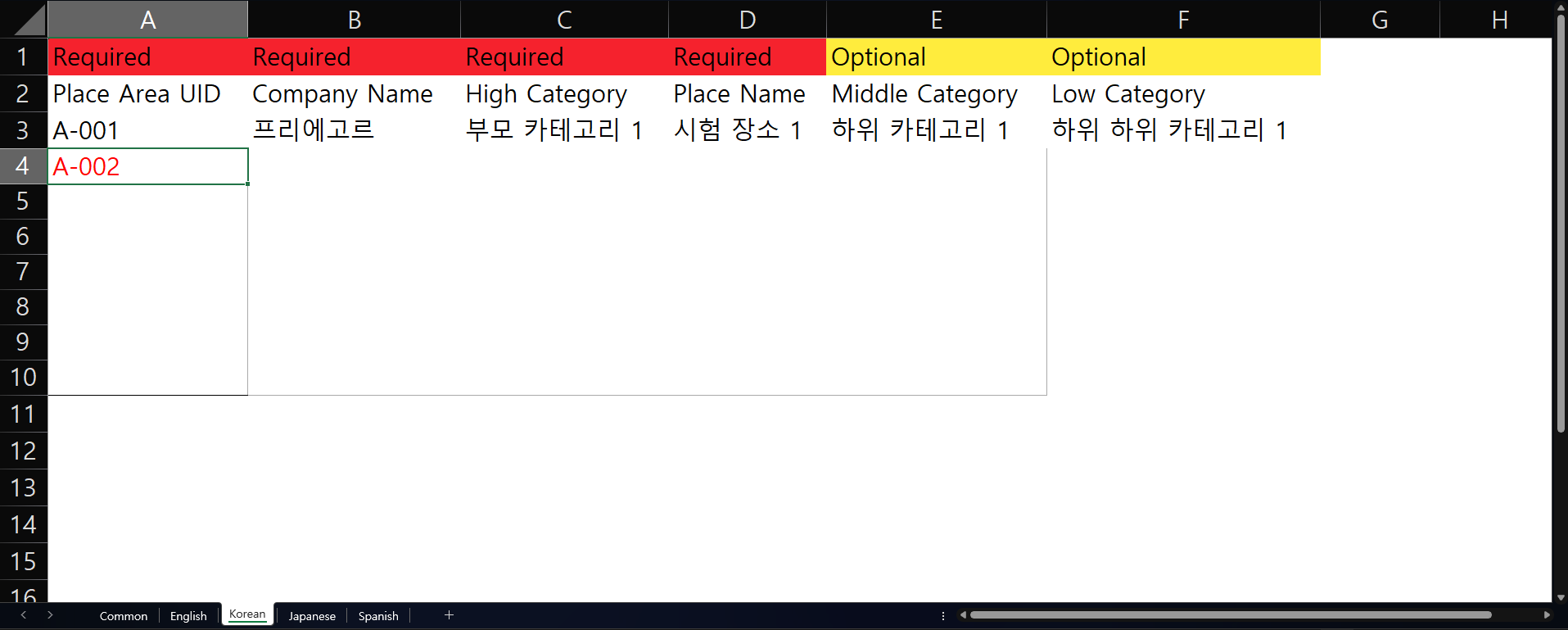
- Fill in the content for one language sheet (the base language), then save.
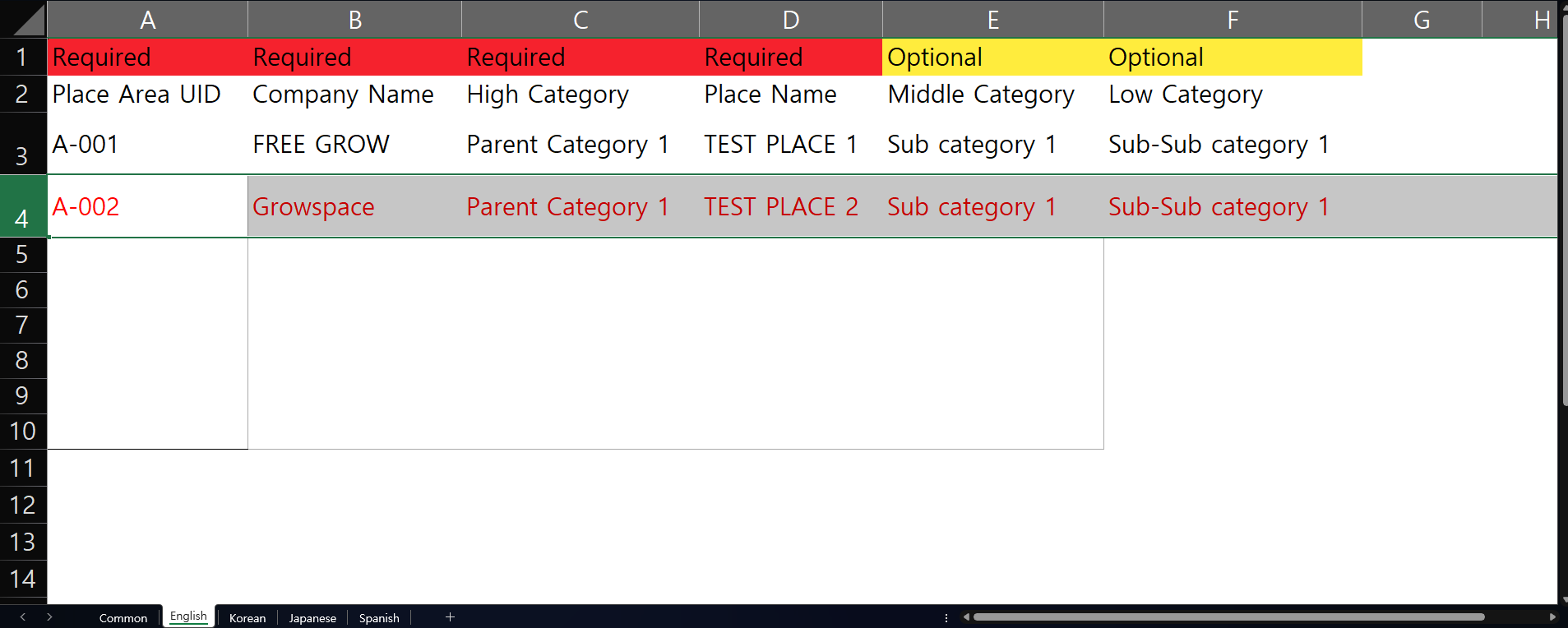
2) Example: Changing the Order of Place Area UID “A-002”
- In the “Common” sheet, move the row containing A-002 to the desired position.

- Move the row for A-002 to the same position in all the remaining language sheets as well.

4. Uploading the Excel Template
- Click the “
- In the popup, first select the base language you used in the Excel template.
- Click the Upload button in the Attach file section to upload the edited Excel template file.


- Once the upload is complete, the other languages will be automatically translated based on the selected base language.
- If the screen doesn’t advance after uploading, please refresh the page.
- The data upload will complete after refreshing.
