
In This Article
This guide is for anyone using the GrowSpace Creator Kit Q1 or Expansion Kit for the first time. It walks you through connecting your UWB devices and completing initial setup with the web configuration tool.
Before You Start
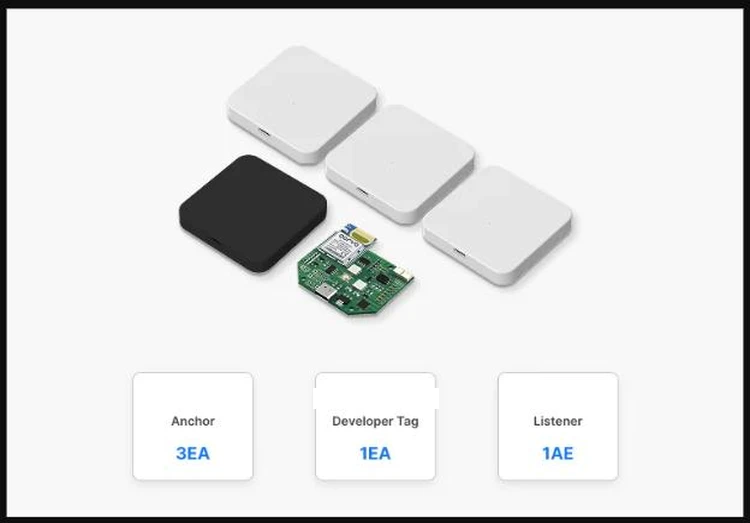
Required Hardware
| Item | Spec |
|---|---|
| GrowSpace UWB devices | Anchor, Tag, Listener |
| Connection cable | USB Type-A to Type-C |
| USB-to-UART adapter | Needed in some setups (e.g., connecting a Listener directly) |
| PC | Windows 10 or later recommended (macOS not supported) |
Required Software
| Item | Details |
|---|---|
| Web browser | Google Chrome (Edge, Safari, and Firefox are not supported) |
| URL | https://grow-space.io/software/ |
Opening the Web Configuration Tool
Click the link below to open the GrowSpace Web Console configuration tool.
🔗 https://grow-space.io/software/
When you open it, you will see a screen like this:
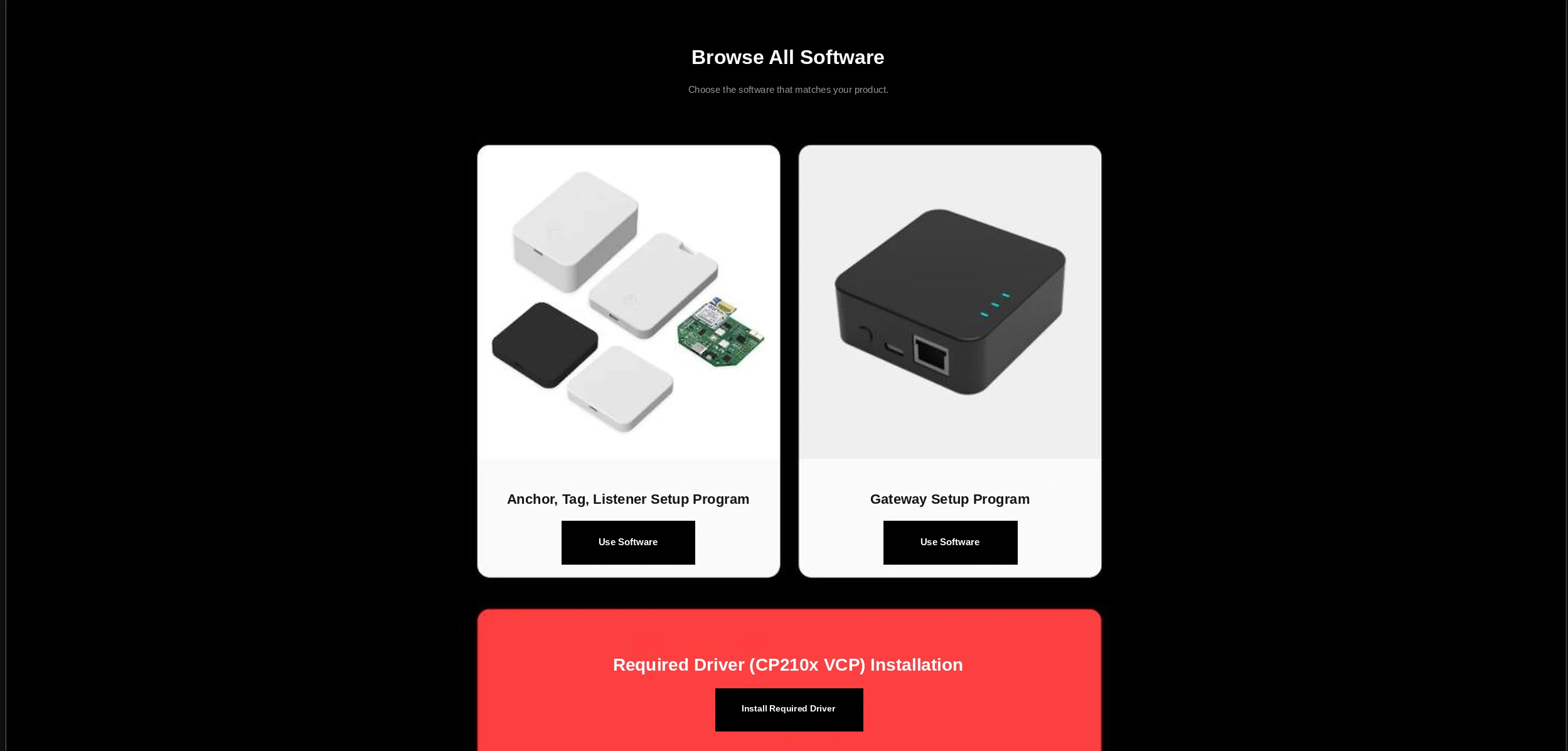
There are three options, and here is what each one does:
- Anchor / Tag / Listener Configuration Program
This is the main configuration program for setting up your GrowSpace RTLS devices (Anchor, Tag, Listener).
Click theUse Softwarebutton in the left box to launch it. - Gateway Configuration Program
Use this program when you need to configure the Gateway device separately.
Click theUse Softwarebutton in the right box. - Required Driver (CP210x VCP) Installation
You need this driver for USB communication between your device and PC.
Click theInstall Required Driverbutton in the red area at the bottom center.
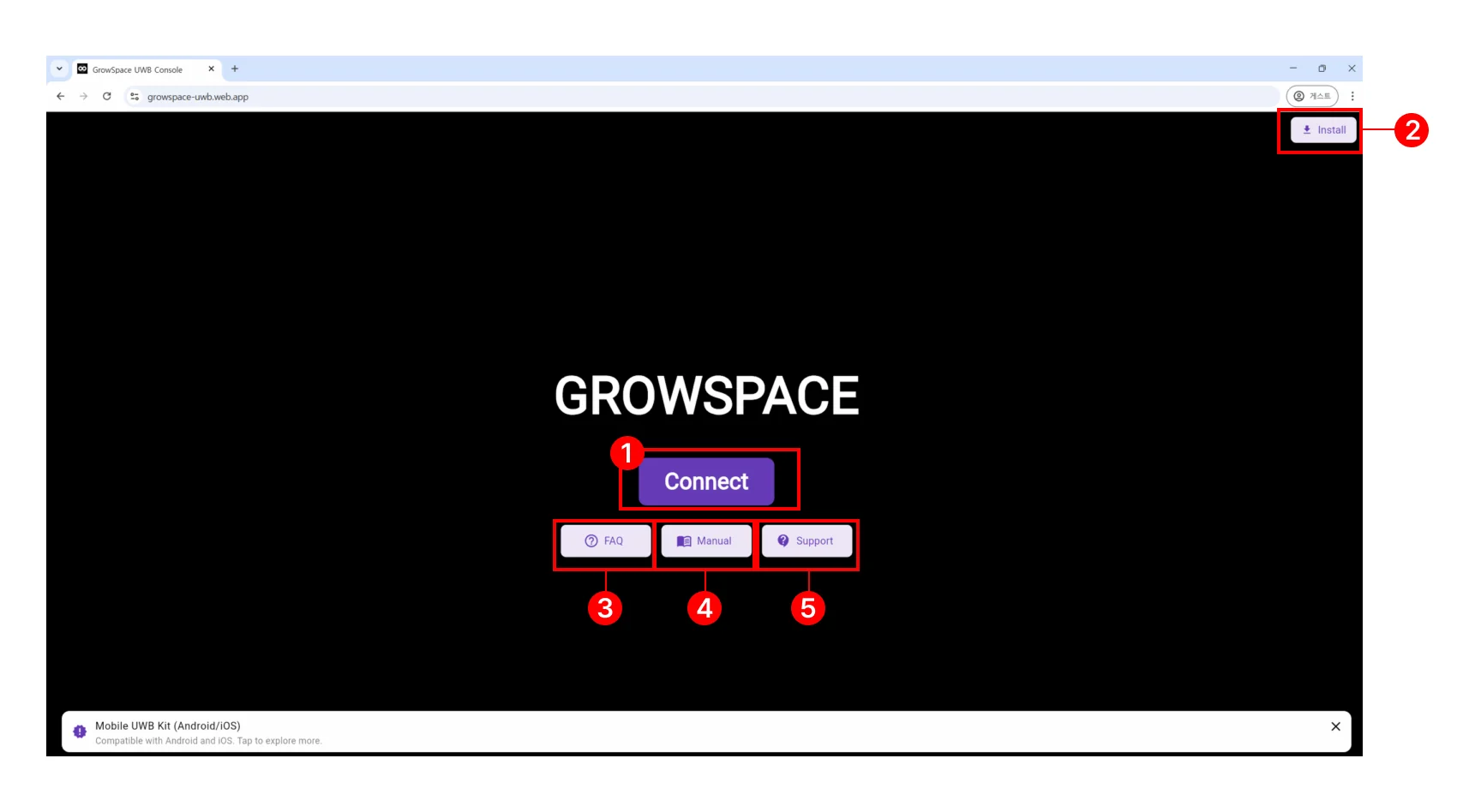
| Button | Description |
|---|---|
| Connect | Click to connect your device and get started |
| FAQ | A collection of frequently asked questions |
| Manual | Go to the full manual |
| Support | For technical support |
| Install | Install as a desktop-like app (PWA) |
Connecting and Configuring Your Device
Connect the Device
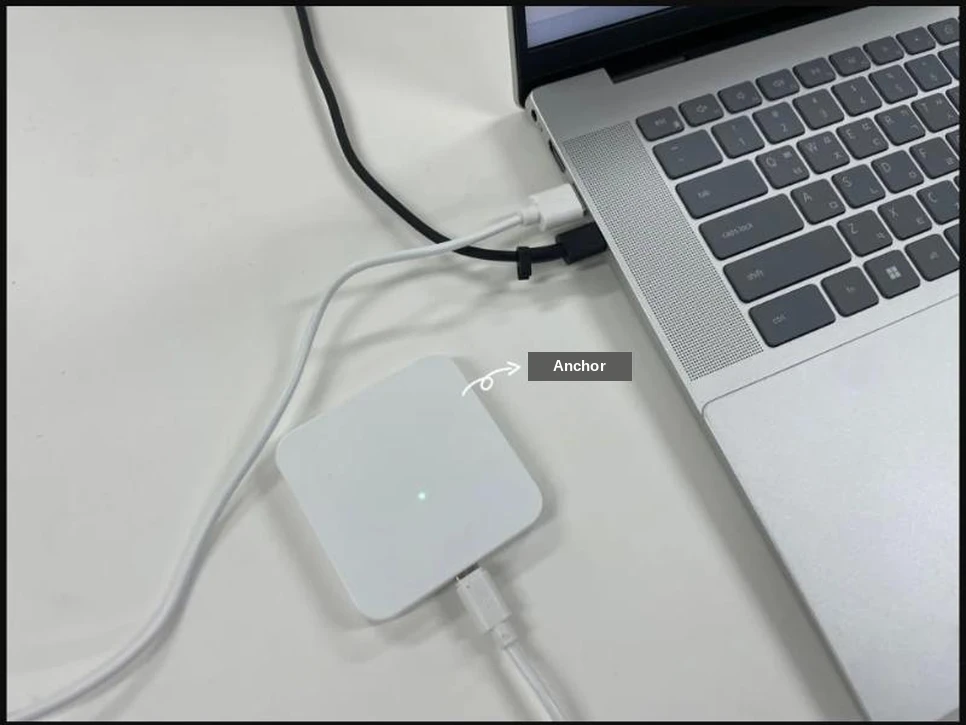
- Connect the Anchor device from your Creator Kit Q1 or Expansion Kit to your PC with a USB cable.
- Open the web configuration tool.
👉 https://growspace-uwb.web.app - Click the [Connect] button at the top of the page, then select your connected device from the serial port list.
- Example:
Silicon Labs CP210x USB to UART Bridge (COM3) - After selecting it, click [Connect] and you will see a confirmation message.
Port names can vary by PC.
Check Windows Device Manager to confirm the actual COM port your device is on before selecting it.
If Your Device Is Not Detected
If your device does not connect to your PC, or does not appear in the port list, work through these checks in order.
- Try a different USB cable and reconnect.
A faulty cable can sometimes prevent the device from being detected properly. - Try a different USB port.
Detection can vary by port, so try switching ports if possible. - Check whether the CP210x VCP driver is installed.
This is especially important for Listener devices — the port will not be recognized correctly without it. - If you have not installed the driver yet, see the guide below.
→ [View the CP210x VCP Driver Installation Guide]
Next Steps
Once your UWB device is connected successfully, initial setup is complete.
Next, you can install the Anchor devices in your physical space and start positioning.