
Here’s how to register the banner image displayed at the top of the home screen.
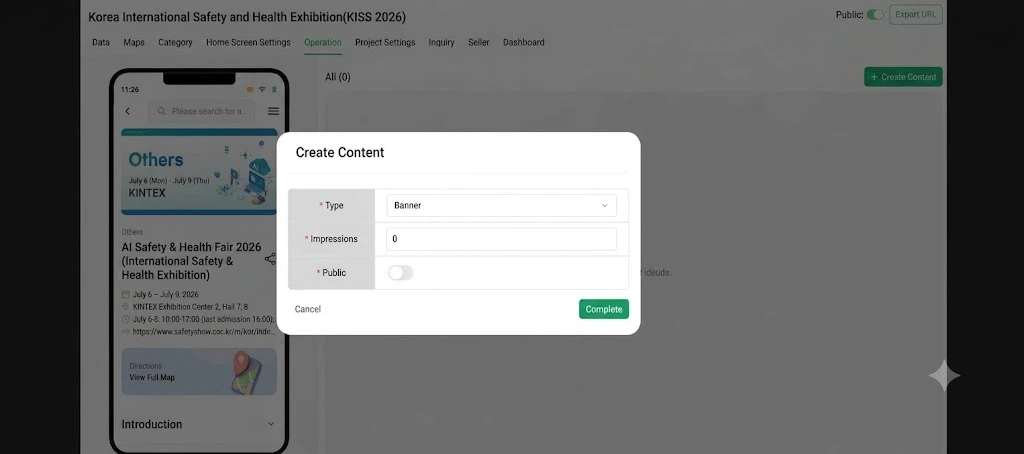
To set up a banner, first create the content in Home Screen Setting, then register the banner by adding an item.
Creating Banner Content
- Click [Home Screen Setting] in the top menu.
- Click the [+ Create Content] button in the top right.
- In the Create Content popup, configure the following fields. (
*indicates required) - *Type: Select Banner from the list.
- *Number of Displays: Enter the number of banners to show on the home screen.
- *Public: Turn on the toggle to display it on screen.
- Click [Complete] to create the banner content.
💡 Once the content is created, a
banneritem will appear in the list.
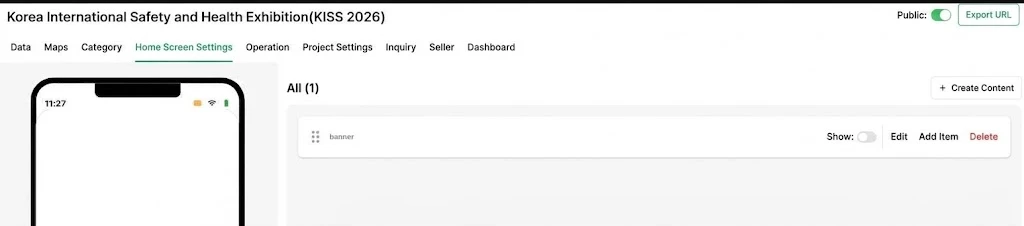
Registering a Banner by Adding an Item
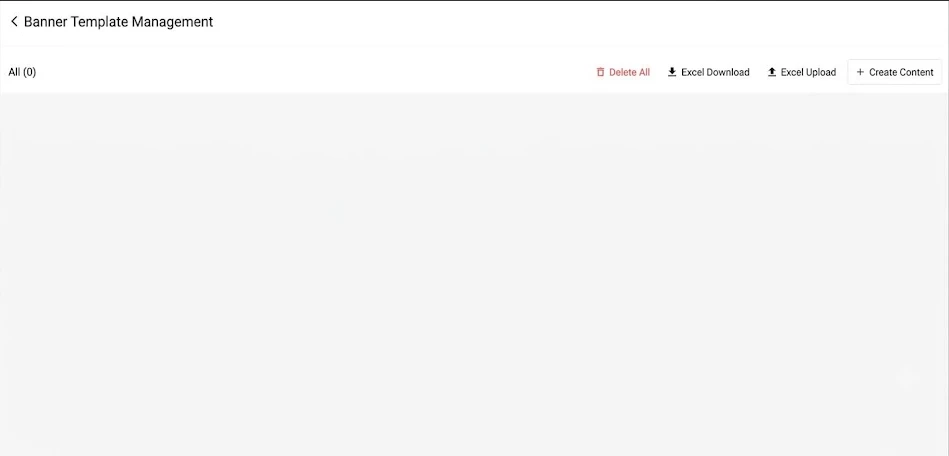
From the created banner content, click [Add Item]. There are two ways to register a banner.
- Method A. Create Content — Register one at a time directly on screen
- Method B. Excel Upload — Register multiple at once via Excel
Method A. Register via Create Content
Selecting Create Content from [Add Item] opens the Create Banner screen. Enter the following fields. (* indicates required)
| Field | Description | Required |
|---|---|---|
| *Public | Whether it’s shown on screen (toggle) | Required |
| *Title | Banner title | Required |
| *conn | What the banner links to when clicked (e.g., select Link then enter the address) | Required |
| *Thumbnail | Image for the list/preview | Required |
| Image | Banner detail image | Optional |
Image Specifications
| Item | Format | Size Limit | Ratio | Recommended Size |
|---|---|---|---|---|
| Thumbnail | PNG or JPG | Max 500KB | 2 : 1 | 530 × 265 px |
| Image | PNG or JPG | Max 500KB | 3 : 2 | 1270 × 847 px |
⚠️ Important — Keep image sizes consistent When registering multiple banners, all banner images must be the same size (specification). If banner sizes differ, they won’t display evenly on screen.
Once finished, click [Save].
⚠️ Be sure to complete the translation step After entering content in Korean, click [Auto Translate] in the top right to translate it into English, Chinese, and Japanese. This step must be completed for it to display correctly in all languages. (Note that the translation process may produce some mistranslations or paraphrasing, so we recommend checking it after registration.)