
In This Article
To configure GrowSpace UWB devices (Tags, Anchors, Listener) over a USB connection to your PC, or to receive data from them,
the CP210x VCP driver must be installed first.
This manual explains why the driver is needed and walks through downloading and installing it step by step.
What Is a USB to UART Driver?
GrowSpace devices communicate using serial communication.
Most modern PCs, however, no longer have a built-in serial port (RS-232), so they can’t use this connection out of the box.
To solve this, GrowSpace devices include a USB to UART (serial conversion) module, which lets your PC recognize the USB port as a virtual COM port.
The software that makes this possible is the CP210x VCP driver.
What Is the CP210x VCP Driver?
The CP210x VCP (Virtual COM Port) driver lets a USB device behave like a serial port.
It is required for communication between your PC and GrowSpace UWB hardware. Once installed, the device will appear as a “COMx” port.
Note: without this driver, the web configuration tool and setup software will not be able to detect the device.
Before You Install
- Operating system: Windows 10 / 11
- A USB-to-C (or USB-to-USB) cable to connect the device to your PC
Installation Steps
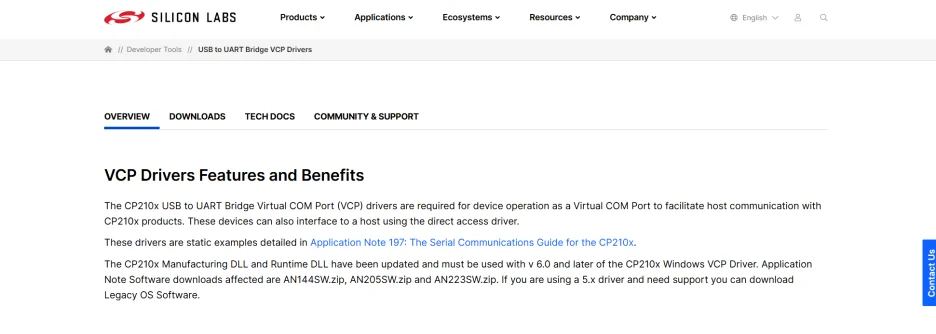
1) Go to the Official Download Page
- Open the Silicon Labs official download page at the link below:
https://www.silabs.com/developers/usb-to-uart-bridge-vcp-drivers
2) Select the Windows Driver
- Find the “CP210x Windows VCP Driver” entry on the page.
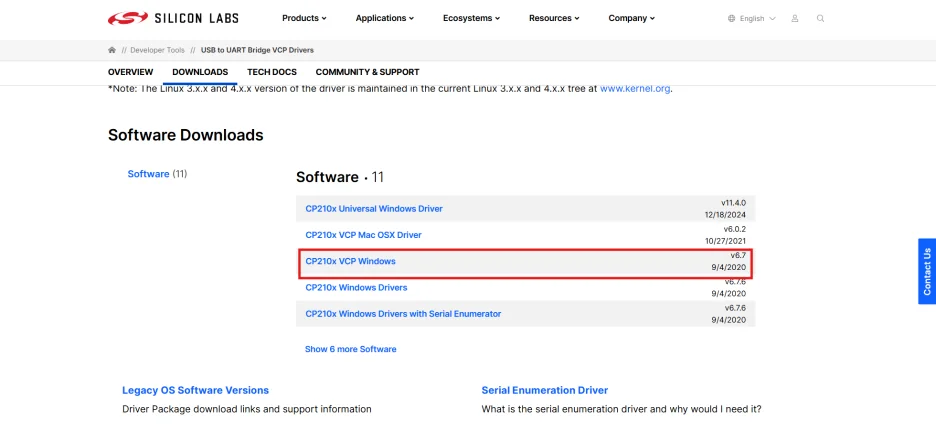
- Download the
.exefile for your operating system (for example,CP210xVCPInstaller_x64.exefor 64-bit Windows).
3) Install the Driver
- Run the downloaded
.exefile.
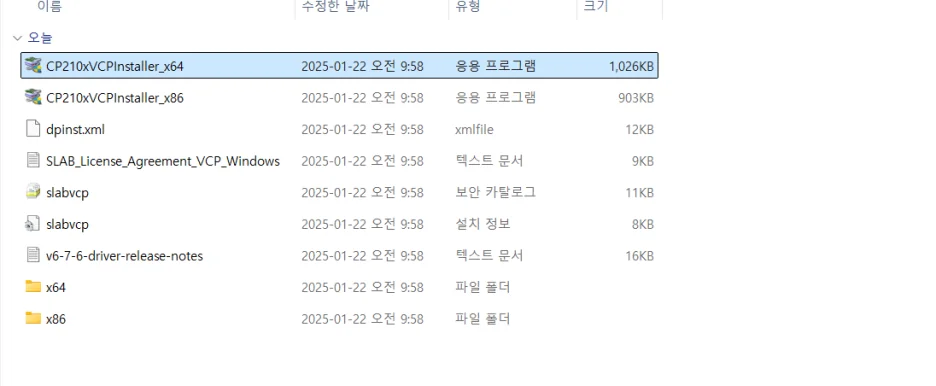
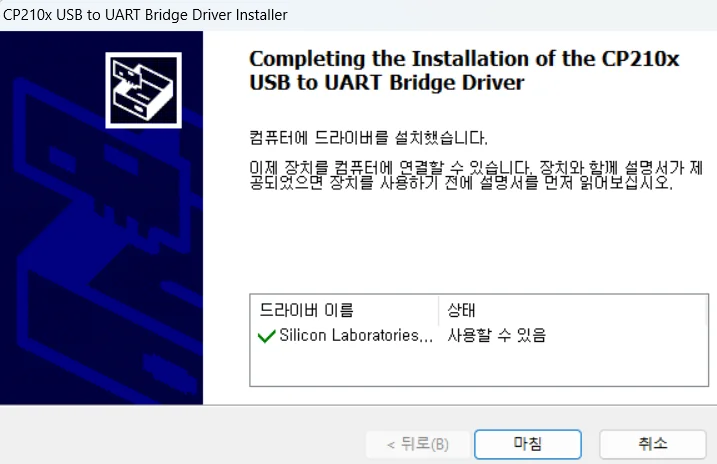
- When the setup wizard starts, click [Next] to proceed through each step.
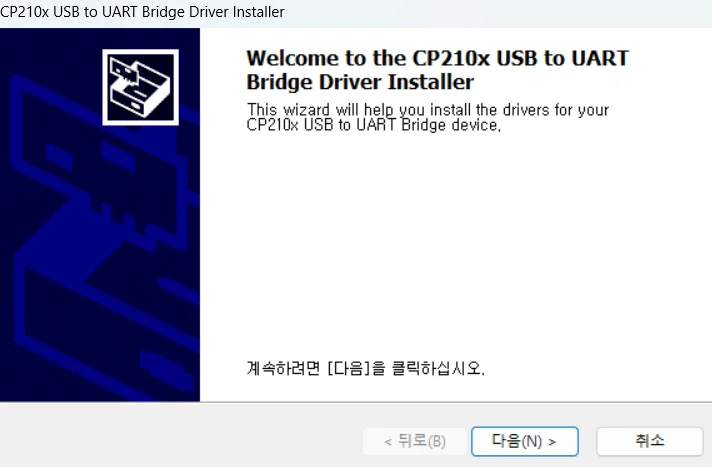
- When installation finishes, click [Finish] to close the wizard.
Confirming a Successful Install
Follow these steps to confirm the driver installed correctly.
How to Check
- Press Win + X and click [Device Manager]
- Expand the [Ports (COM & LPT)] section
- Confirm you see
Silicon Labs CP210x USB to UART Bridge (COMx)listed
If the port appears without a warning icon, the driver has been installed correctly and the device is ready to communicate with the GrowSpace web configuration tool.