
When a physical count does not match the system quantity, pause before changing the record. First check whether the same item, location, unit of measure, and cutoff time were compared. Receipts, picks, transfers, unit conversions, or timing differences can make two figures look inconsistent even when the count itself was entered correctly.
This is a general workflow-design checklist for teams reviewing warehouse, ERP, or WMS processes. It does not claim that FREEGROW currently provides a specific inventory-counting feature. Your actual process and approval authority should follow your organization’s inventory and accounting policies.

1. Fix the time and scope of the comparison
Record the count date and time, warehouse area or bin, item identifier, and unit of measure—such as eaches or cases. Note the timestamp of the system quantity as well. If receipts, picks, or transfers occurred during the count, check whether those transactions were included in the comparison basis.
2. Recount under the same conditions
Confirm the item and unit, then recount using the procedure your organization has set. Keep the first and recount values separate so a data-entry issue can be distinguished from a remaining variance. Define in advance which cases require another count instead of automatically adjusting every difference.
3. Treat possible causes as investigation categories
Possible checks might include a receipt not yet recorded, a delayed issue transaction, a location mix-up, pack-size conversion, or an unrecorded damage or disposal. These are illustrative investigation paths, not confirmed causes or claims about your operation. If the cause is unknown, keep it marked as under review and assign an owner.
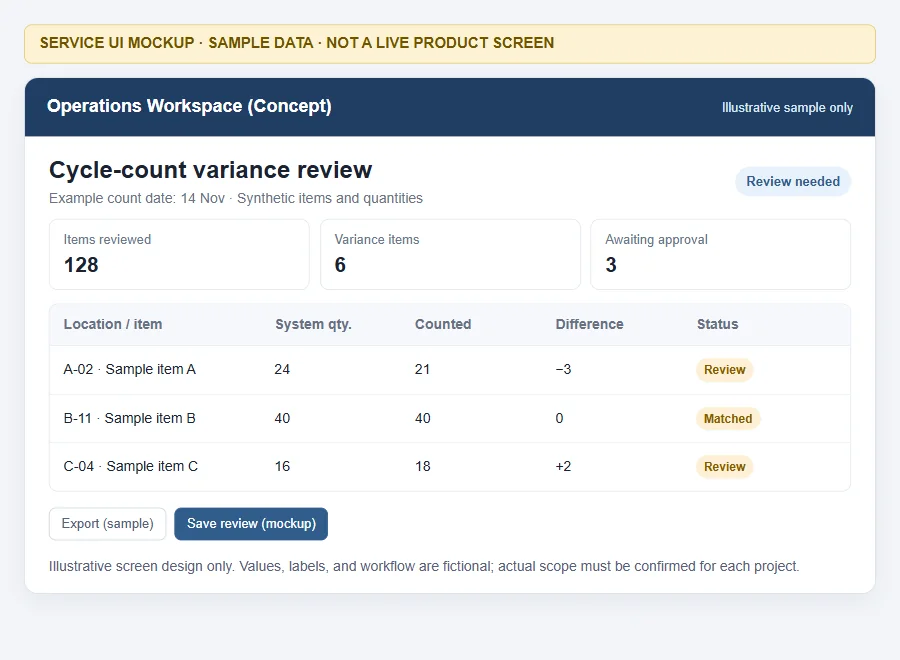
4. Separate review from approval to adjust
Do not decide to post an adjustment from the quantity difference alone. Define who checks the recount and who approves an adjustment. If your organization uses different review paths by value, item class, or repeat occurrence, document the rule and its exceptions. Inventory and accounting owners should agree on when a change also affects financial records.
5. Preserve the original count and the decision trail
Keep the first count, recount, pre-adjustment system quantity, reason, reviewer, approver, and processing time together. That makes it easier to answer who changed the record and why. Assign responsibility for the audit trail instead of overwriting the number or leaving approval status unclear.

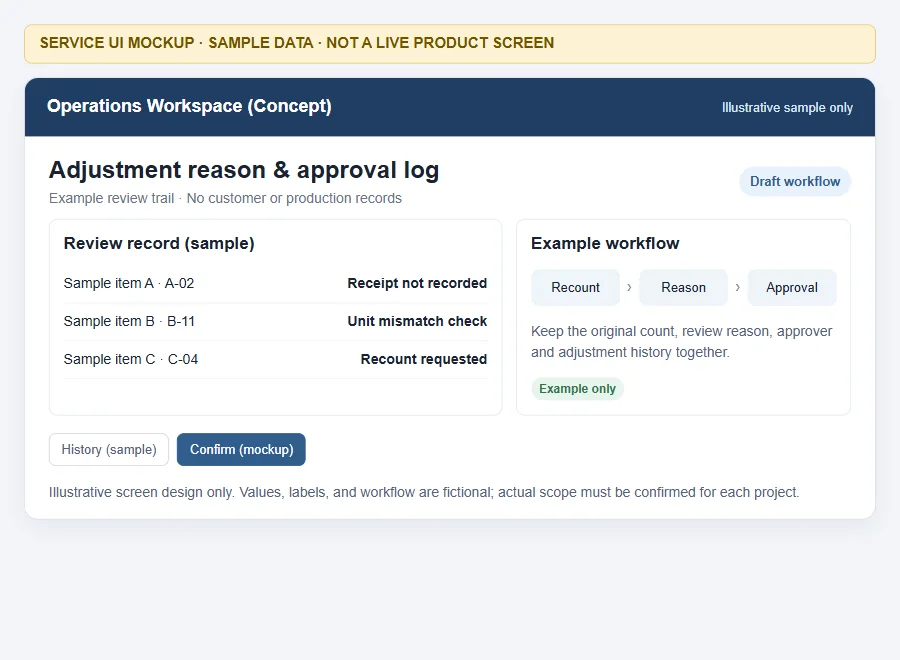
6. Reconcile related transactions after an approved adjustment
After an approved change is applied, confirm that the item and location match the intended basis. Check receipts, issues, and transfers around the adjustment time for omissions or duplicate entries. Keep unresolved cases open until an owner and next action are clear.
7. Questions to agree on before changing systems
- When is the count scope and comparison quantity fixed?
- Who recounts a variance, and under what conditions?
- Who approves an adjustment, and who owns any accounting entry?
- Where are the original count, reason, edits, and approvals recorded?
- How are concurrent receipts, issues, or transfers handled?
Microsoft Dynamics 365 Business Central documents physical and cycle-count adjustment workflows. Oracle Warehouse Management documents approval, rejection, and recount paths for cycle-count adjustment records. These describe examples in those products; they do not establish that your current system—or FREEGROW—has the same functionality. Microsoft Learn: Count, adjust, and reclassify inventory · Oracle WMS: Approve or Reject Cycle Count Adjustment Records
Planning a system workflow for inventory variances?
Start by mapping the spreadsheets, ERP or WMS data, and approval steps you already use. A consultation can help clarify what information and review stages a project would need to connect. Actual scope depends on the requirements and integration environment.
Review custom software and system development, then discuss your workflow