
If an ERP spreadsheet is moved into an operations system each day, what should happen when the same row appears in the next file? Should it create a new receipt? Should an earlier quantity simply be overwritten? Without a shared rule, a receipt can be counted twice or the reason for a cancellation or correction can disappear.
The points below are design questions for scoping an import workflow. They do not describe a prebuilt product feature. The right handling depends on the ERP export, business rules, and permissions of the systems involved.
First identify whether the file is a full snapshot or a delta
A daily export may contain the complete transaction list as of that moment, or only new and changed rows. A row missing from a full snapshot is not automatically a cancellation; the export filter or date range may have changed. Agree on the file timestamp, batch identifier, covered period, and what the export includes.

Define a transaction key before comparing rows
Item name and quantity alone may not identify one transaction. A business key could combine values such as the document number, line number, transaction type, and site or warehouse, but the actual fields must be confirmed in the ERP export and operating rules.
A row that appears again is not always a duplicate. It may be a new receipt, a replay of an earlier file, a cancellation of a posted receipt, or a correction to an older value.
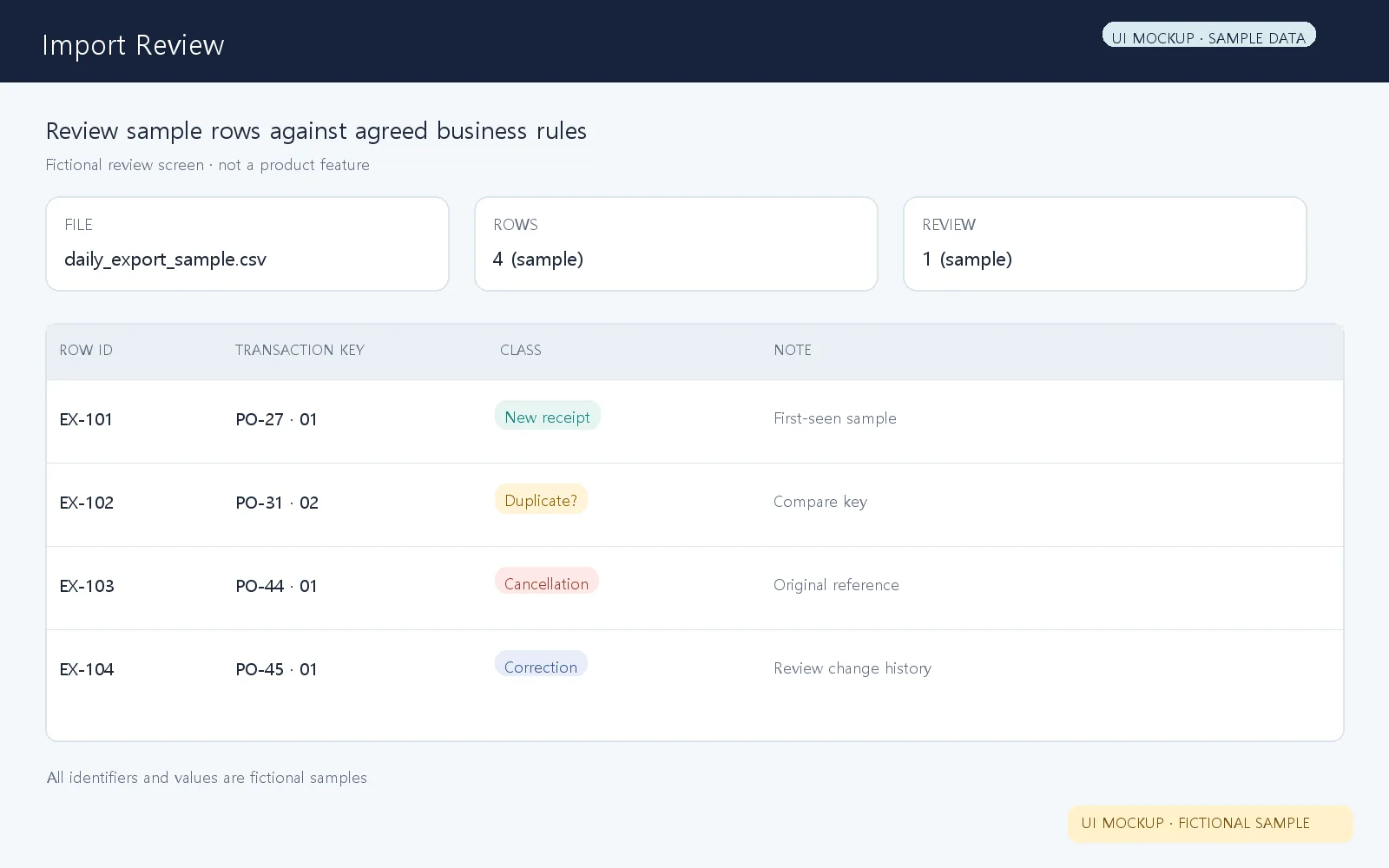
Treat new, duplicate, cancelled, and corrected rows differently
- New receipt: A transaction seen for the first time. Record which source row and target record it represents.
- Duplicate replay: The same transaction or file is processed again. Define which key is used to prevent the same transaction from being applied twice.
- Cancellation or reversal: A business action that reverses a receipt already applied. Confirm whether the ERP provides an explicit cancellation row, a reference to the original transaction, or a status change. Do not infer a cancellation just because a row disappeared.
- Correction: An earlier value was wrong and needs a change. Agree on which prior value, corrected value, source reference, reason, and review responsibility should be retained.
If both cancellations and corrections simply overwrite the old row, it may be hard to explain the previous value later. If every change is treated as a new event, totals may no longer match the business process. First decide which view must remain consistent: stock quantity, accounting, or transaction history.
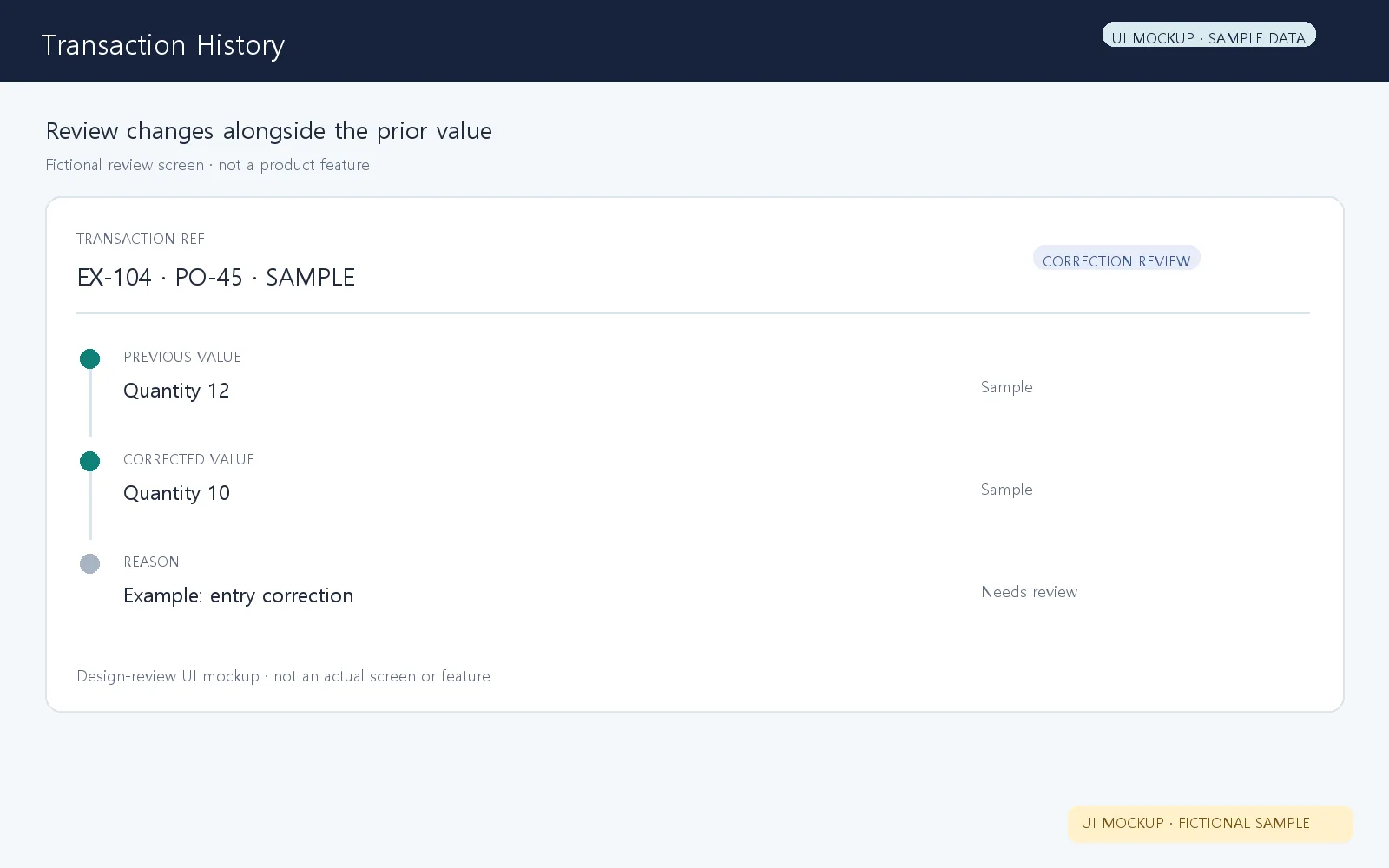
Review correction history without collecting unnecessary data
For a correction rule, decide whether to retain the previous value, new value, source file or transaction reference, application time, and review responsibility. This does not mean every field must always be stored. Keep only what the audit, inventory, and reconciliation purpose requires, within the appropriate privacy boundary.
If the export is a full snapshot, agree separately on what happens when an earlier row is absent from today’s file: should it become a review item, trigger a source-data check, or follow a confirmed cancellation rule?
Test exceptions with a sanitized sample file
One successful normal row is not enough to define the workflow. Remove confidential information and prepare expected outcomes for:
- A first-time receipt row
- A file replay containing the same transaction
- A cancellation or reversal after a receipt was applied
- A correction to an earlier transaction’s quantity or status
- A row missing from a full export when cancellation is not confirmed
For each case, compare transaction keys, row counts, totals, cancellation/correction references, and items waiting for review. Whether an exception is handled automatically or requires an operator should follow the real operating responsibility.

What to prepare before discussing custom scope
Bring a sanitized list of column names, one normal row, examples of duplicates/cancellations/corrections, whether the export is a full snapshot or a delta, and the roles that review and approve exceptions. The available integration approach and project scope depend on the actual ERP data structure and its usage conditions.
FREEGROW describes custom software and hardware development, including integration with existing MES and ERP systems. That does not mean the row classification or audit rules in this article are an existing product feature. Discuss a custom scope based on your file and exception rules. Custom systems and ERP/MES integration
Related posts
- Interactive Display Projects: How to Define Enclosure, Electronics, and PCB Scope
- Custom Industrial System Handover: Documents and Operational Responsibilities
- Before AI Workflow Automation: Define Your Excel, Quotation, and Inventory Data
- UWB Kit Price Guide: What Anchors, Tags and Gateways Cost for Indoor Positioning